> ## Documentation Index
> Fetch the complete documentation index at: https://docs.colorsystem.io/llms.txt
> Use this file to discover all available pages before exploring further.
# Preview your ColorSystem
> Experience your new color system right away.
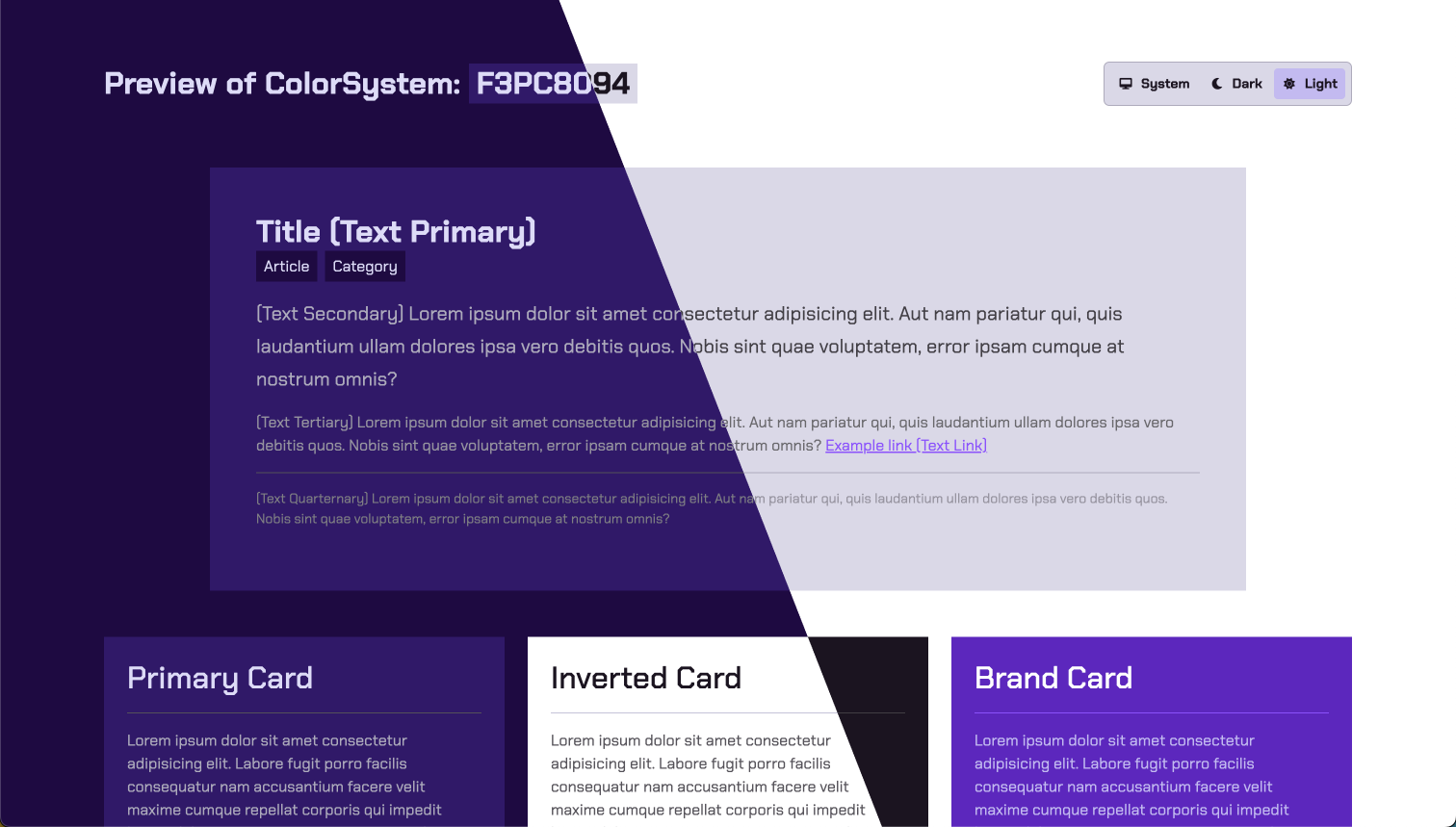 In this guide, we'll walk you through previewing a color system created with ColorSystem.io. Get insights into how your palette looks and functions before finalizing your design. It's all about exploring and understanding your color choices. 🎨
### 1. Create a Color System
First [create a color system](https://beta.colorsyste.io/new). Once you have your colorsystem, please copy the ColorSystem ID.
Here is a list of ColorSystem ID:s that you can test with
If you just want to test this out without creating a color system of your own you can test with any of these:
```txt Barbie Color System Example: theme={null}
BARBIE
```
```txt Spotify Color System Example: theme={null}
SPOTIFY
```
```txt FedEx Color System Example: theme={null}
FEDEX
```
```txt YouTube Color System Example: theme={null}
YOUTUBE
```
```txt Kodak Color System Example: theme={null}
KODAK
```
```txt IKEA Color System Example: theme={null}
IKEA
```
### 2. Launch the Preview
Just enter the color system id in the box below and click "Launch Preview"
Just replace `` with your color system id in the link below.
```
https://beta.colorsystem.io/preview/
```
## 3. Toggle Light / Dark Mode
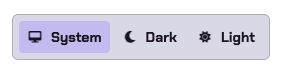
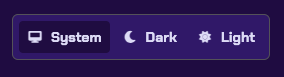
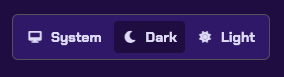
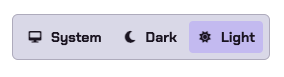
To preview how your site will behave for users with different preferences for dark or light mode, use the Theme Selector component at the top of the preview page.
In this guide, we'll walk you through previewing a color system created with ColorSystem.io. Get insights into how your palette looks and functions before finalizing your design. It's all about exploring and understanding your color choices. 🎨
### 1. Create a Color System
First [create a color system](https://beta.colorsyste.io/new). Once you have your colorsystem, please copy the ColorSystem ID.
Here is a list of ColorSystem ID:s that you can test with
If you just want to test this out without creating a color system of your own you can test with any of these:
```txt Barbie Color System Example: theme={null}
BARBIE
```
```txt Spotify Color System Example: theme={null}
SPOTIFY
```
```txt FedEx Color System Example: theme={null}
FEDEX
```
```txt YouTube Color System Example: theme={null}
YOUTUBE
```
```txt Kodak Color System Example: theme={null}
KODAK
```
```txt IKEA Color System Example: theme={null}
IKEA
```
### 2. Launch the Preview
Just enter the color system id in the box below and click "Launch Preview"
Just replace `` with your color system id in the link below.
```
https://beta.colorsystem.io/preview/
```
## 3. Toggle Light / Dark Mode
To preview how your site will behave for users with different preferences for dark or light mode, use the Theme Selector component at the top of the preview page.